Start typing to search 227 tools.
SHA256 File Checksum Generator
Calculate a SHA-256 checksum for any local file or exact text, then compare it with a published 64-character digest without uploading the file.
256-bit digest ready
Calculate a file checksum or hash exact text, then compare it with a published SHA-256 value.
produced the expected SHA-256 digest.
Do not store passwords as plain SHA-256 hashes. Password storage should use a dedicated slow password-hashing function such as BCrypt or Argon2.
What SHA256 Generator does
SHA256 File Checksum Generator calculates a SHA-256 digest from the original bytes of a local file. The file is read by your browser and is not uploaded to Trexmi. You can paste a checksum published by a software vendor, download page, build system, or colleague and receive a clear match or mismatch result.
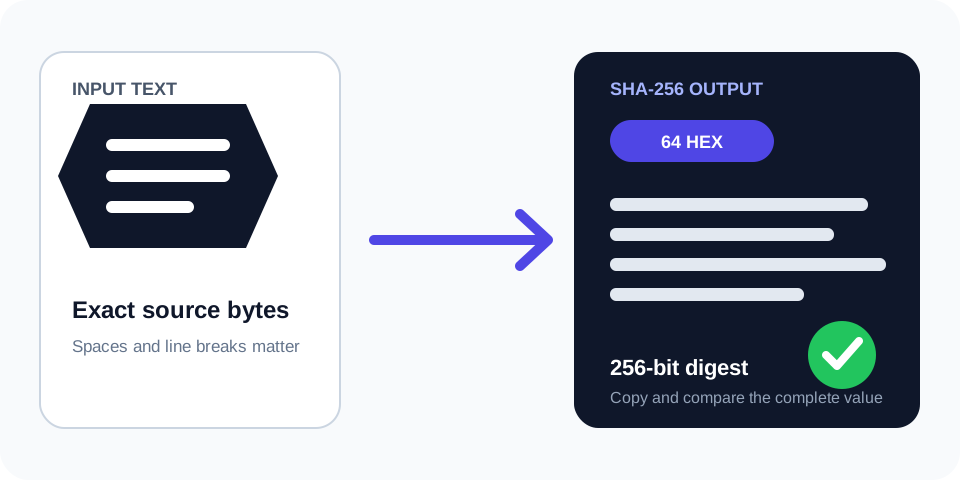
Text and hexadecimal-byte modes remain available for controlled test vectors and integration debugging. Every input produces a 256-bit digest displayed as 64 lowercase hexadecimal characters, uppercase hexadecimal, and Base64.
A matching checksum confirms that two byte sequences are identical. It does not prove that the publisher is trustworthy, so obtain reference checksums from an authenticated source.
How to use
- Select the source. Use Local file for a download, archive, image, installer, document, or other file. Use text or hex mode only when you intentionally need to hash those exact bytes.
- Add the reference. Paste the complete published SHA-256 value if you need verification rather than generation only.
- Calculate locally. The browser reads the selected file and calculates its digest without sending the file contents to Trexmi.
- Read the verdict. A match means the selected bytes produced the published checksum; a mismatch means at least one byte differs.
- Verify the source. Confirm that the reference checksum came from the official vendor, repository, signed release page, or another trusted channel.
Why use SHA256 Generator?
Focused controls, predictable output, and a workflow designed around this exact transformation.
Local file processing
Calculate the checksum from the original file bytes without uploading the file to Trexmi.
Direct verification
Compare against a published SHA-256 value and receive an explicit match or mismatch verdict.
Any file type
Hash binary or text files without converting their contents or changing line endings.
Complete output
Copy lowercase hex, uppercase hex, or Base64 while reviewing file size and source mode.
Questions about SHA256 Generator
Practical details about input, output, privacy, limits, and the best way to use this tool.
01 Are local files uploaded to Trexmi?
No. In Local file mode, the browser reads the original file bytes and calculates SHA-256 on the device. The result records that processing was local and the file was not uploaded.
02 What does a matching SHA-256 checksum prove?
It shows that the selected file bytes match the bytes used to produce the reference checksum. It does not independently prove who published the file or whether the reference itself is trustworthy.
03 Why does my SHA-256 checksum not match?
The file may be incomplete, modified, repackaged, corrupted, or simply a different version. Confirm the filename and version, download it again from the official source, and compare the entire 64-character value.
04 Can I calculate SHA-256 for a ZIP, PDF, image, or installer?
Yes. Local file mode hashes the original bytes and does not require a text format. The active account file-size limit still applies.
05 Is a SHA-256 file checksum case-sensitive?
Hexadecimal letters can be uppercase or lowercase without changing the underlying digest. The comparison normalizes letter case but still requires exactly 64 hexadecimal characters.
06 Is hashing pasted text the same as hashing a file?
Not always. A text editor can change encoding, line endings, a byte-order mark, or a final newline. For file verification, select the original file instead of pasting visible content.
07 Can SHA-256 store passwords securely?
No. Password storage needs a salted, deliberately expensive function such as Argon2id, bcrypt, or scrypt. A fast file checksum algorithm is unsuitable for that job.
08 Should I use SHA-256 or SHA-512?
Use the algorithm required by the published reference or protocol. Choose the SHA-512 comparison tool when you specifically need a 512-bit digest or want to compare both SHA-2 output sizes for the same text.
Read the complete Hashing Guide
Understand SHA hashes, checksums, HMAC, salts, password hashing, verification, and practical integrity workflows.
- SHA and checksum workflows
- HMAC and keyed hashes
- Password hashing and verification
How to verify a file with SHA-256
Start with the untouched file you received. Select Local file, choose that file, and paste the checksum from the official release or download page into the optional comparison field. Trexmi uses the browser Web Crypto implementation to read the file as raw bytes and calculate SHA-256 locally.
The output contains 64 hexadecimal characters because every hexadecimal character represents four bits and SHA-256 produces 256 bits. Compare the full value. Matching only the beginning or end is not sufficient for reliable verification.
Why raw file bytes matter
A file checksum covers every byte, including headers, metadata, compressed data, embedded images, line endings, and bytes that are not visible in a text editor. Renaming a file alone normally leaves the checksum unchanged, but editing, recompressing, exporting, or rebuilding it changes the bytes and therefore changes the digest.
What a checksum match and mismatch mean
A match means the selected file and the publisher copy used for the reference checksum are byte-for-byte identical. This is useful for detecting incomplete downloads, transfer corruption, unintended edits, and version mix-ups.
A mismatch is a stop signal. Recheck the release version, architecture, operating-system package, and whether the publisher lists separate checksums for different mirrors or builds. Download the file again from the official source before assuming malicious modification; ordinary version or transfer differences also produce a mismatch.
Checksum versus digital signature
A checksum proves equality with a reference value, while a valid digital signature can also authenticate the signer when the signing key is trusted. If a vendor provides both, verify the signature and the checksum according to its instructions. Never rely on a checksum copied from the same untrusted page or message as a suspicious file.
Common SHA-256 file verification errors
Hashing visible text instead of the file
Pasting document text does not reproduce the checksum of the original PDF, DOCX, ZIP, executable, or image. Even plain-text files may contain different encodings or line endings. Use Local file mode for a published file checksum.
Using a checksum for another build
Projects often publish separate packages for Windows, macOS, Linux, CPU architectures, editions, and release revisions. Each artifact has its own checksum. Match the exact file to the correct row in the publisher list.
Copying an incomplete digest
SHA-256 requires all 64 hexadecimal characters. Remove labels such as SHA256: only if necessary; the comparison field accepts that common prefix and ignores whitespace, but it rejects truncated or non-hexadecimal values.
SHA-256 security and trust boundary
SHA-256 remains suitable for general file-integrity verification, but the checksum must travel through a trustworthy channel. An attacker who can replace both a file and its checksum can make the pair match. Prefer an HTTPS vendor site, signed release metadata, a trusted package manager, or an independently authenticated message.
This tool does not scan files for malware, validate code signatures, inspect archive contents, or judge the reputation of a publisher. Its result answers one focused question: did these exact bytes produce this exact SHA-256 value?
For the algorithm definition, see the NIST Secure Hash Standard.
Related Trexmi tools
Use the Checksum Calculator when a specification requires CRC32, MD5, SHA-1, SHA-384, or SHA-512 rather than a dedicated SHA-256 file workflow. Use the SHA512 Generator & SHA256 Comparison for long SHA-512 output and a same-input comparison. Use the Hash Generator when you need several text hashes from one workspace.
Final SHA-256 verification checklist
- Use the original downloaded file, not copied visible text.
- Choose the checksum published for the exact version and platform.
- Compare all 64 hexadecimal characters.
- Stop and download again if the result does not match.
- Confirm that the checksum source itself is authenticated.