01
Canonical PEM structure
Restores standard boundary lines and 64-character Base64 wrapping for easier compatibility.
Start typing to search 227 tools.
Format PEM certificates and keys, validate matching boundary labels, and wrap Base64 content into standard 64-character lines.
PEM Formatter formats PEM certificates, public keys, private keys, CSRs and certificate chains online. Paste one or more complete PEM blocks to validate their boundaries and Base64 body, remove broken whitespace, and restore standard 64-character wrapping.
The workspace keeps source and result separate, so you can review every generated, formatted, or decoded value before copying it into another system. Processing is handled without an external API request.
Use non-production samples whenever possible. Never paste an active private key, production passphrase, live certificate secret, or confidential customer material into an environment you do not fully control.
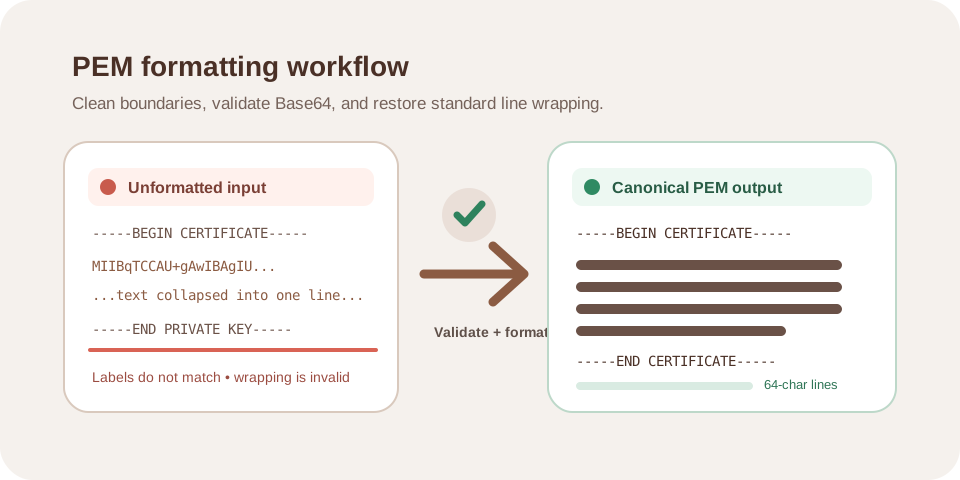
Focused controls, predictable output, and a workflow designed around this exact transformation.
Restores standard boundary lines and 64-character Base64 wrapping for easier compatibility.
Detects missing or mismatched BEGIN and END labels before formatted output is returned.
Removes accidental spaces and line-break problems without changing valid encoded bytes.
The formatting process does not require a third-party API request.
Practical details about input, output, privacy, limits, and the best way to use this tool.
No. It normalizes the textual PEM representation. It cannot replace missing bytes, repair an incorrect key, or create certificate trust.
Common labels include CERTIFICATE, PUBLIC KEY, PRIVATE KEY, RSA PRIVATE KEY, and CERTIFICATE REQUEST, provided the opening and closing labels match.
Canonical PEM output wraps the Base64 body into fixed-width lines for interoperability and readability.
No. Formatting checks structure only. Use an appropriate cryptographic comparison workflow to verify a key and certificate pair.
Use non-production samples whenever possible. Active private keys should remain inside an environment you fully control.
Understand TLS certificates, SAN hostnames, issuers, trust chains, expiration, PEM data, fingerprints, and common HTTPS errors.
Use the formatter when a PEM value has been copied through dashboards, environment variables, chat, email, spreadsheets, or configuration systems that damaged its line breaks. The encoded bytes are preserved; only PEM whitespace and wrapping are normalized.
Check that every BEGIN label has the matching END label, confirm the expected object type, then test the formatted output with the receiving server, library, OpenSSL command, or certificate workflow.
The PEM Formatter identifies the BEGIN and END boundaries, checks that both labels match, removes accidental whitespace from the encoded body, validates Base64 characters, and writes the body back using standard 64-character lines.
This operation changes presentation, not cryptographic meaning. The formatter does not create trust, repair a wrong certificate, recover missing bytes, or prove that a private key belongs to a certificate.
A valid PEM block contains a clear label such as CERTIFICATE, PUBLIC KEY, PRIVATE KEY, RSA PRIVATE KEY, or CERTIFICATE REQUEST. The opening and closing labels must describe the same object.
Use a PEM Formatter when copying a certificate from a dashboard, cleaning a key stored on one line, preparing environment variables, reviewing certificate chains, fixing line wrapping after spreadsheet handling, checking migration exports, or preparing support diagnostics.
Keep separate PEM objects separate unless the destination explicitly expects a bundle. When a chain file is required, preserve the required order and verify every certificate independently.
Some deployment systems store line breaks as escaped text. Convert those escaped breaks only when the destination documentation requires it, and verify the final file after deployment.
Formatting a public certificate is usually low risk, but private-key material remains highly sensitive. Do not place a production private key into browser tools, logs, screenshots, support tickets, or shared documents unless the environment and handling process are explicitly approved.
Keep an untouched backup before formatting. Compare the first and last lines, confirm the object label, and test the result with the destination application or an authoritative command-line tool.
A clean PEM block may still contain an expired, revoked, self-signed, mismatched, or untrusted certificate. Format and trust are separate checks.
A block that starts as CERTIFICATE and ends as PRIVATE KEY is invalid even when the Base64 body looks correct.
Some servers require the leaf certificate followed by intermediate certificates. Do not discard extra blocks without checking deployment requirements.
Only whitespace should be normalized. Editing Base64 characters changes the underlying binary object and usually makes it invalid.
Review the OpenSSL documentation and RFC 5280 before using keys or certificates in production.