01
Common schedule presets
Generate hourly, daily, weekday, weekly, and monthly expressions without arranging fields manually.
Start typing to search 227 tools.
Generate standard five-field cron expressions for hourly, daily, weekday, weekly, monthly, or custom schedules.
Cron Expression Generator builds standard five-field schedules from clear controls. Choose an hourly, daily, weekday, weekly, or monthly preset, then set the relevant minute, hour, weekday, or day-of-month value.
The result follows the order minute hour day-of-month month day-of-week. A custom mode accepts an existing five-field sequence when you only need copy-ready output. Custom input is checked for field count, but platform-specific ranges and extensions must still be validated elsewhere.
A cron expression does not usually contain a timezone or job command. Confirm both in the destination scheduler, especially for backups, billing, notifications, and other time-sensitive work.
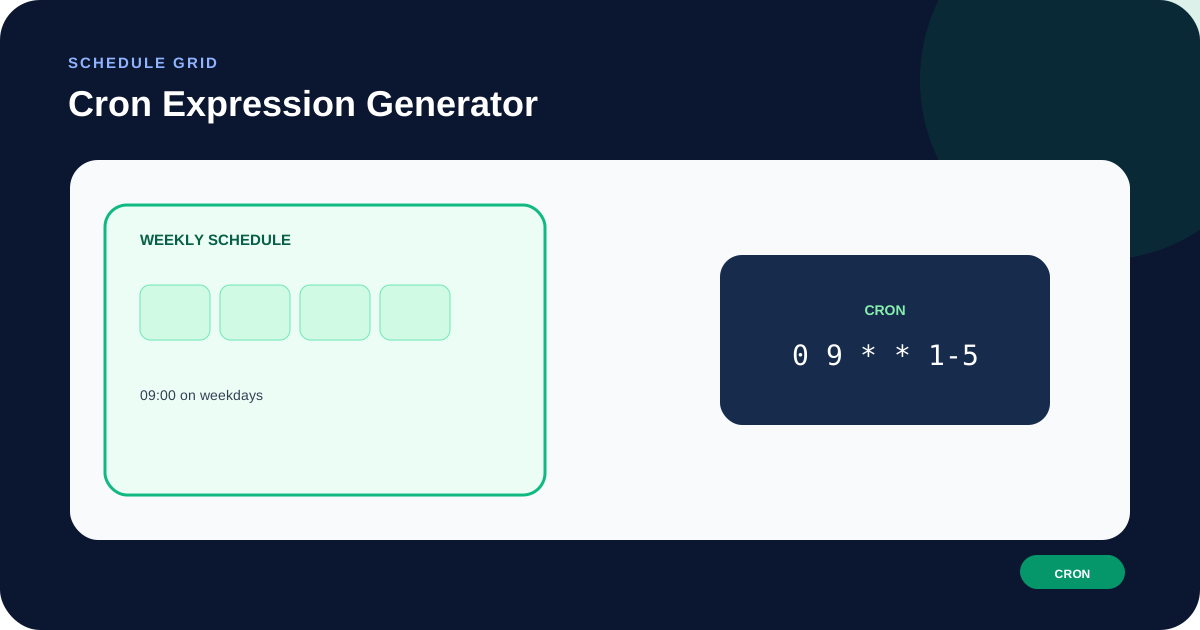
Focused controls, predictable output, and a workflow designed around this exact transformation.
Generate hourly, daily, weekday, weekly, and monthly expressions without arranging fields manually.
Minute, hour, weekday, and day-of-month inputs are kept within their standard numeric ranges.
Reuse an existing five-token schedule while keeping the output easy to review and copy.
Timezone, dialect, daylight-saving, and overlap limits are explained before production use.
Practical details about input, output, privacy, limits, and the best way to use this tool.
It produces a standard five-field expression: minute, hour, day of month, month, and day of week.
No. The current generator targets five-field cron and does not add seconds or a year field.
No. The result contains only the schedule. Add the command according to the target crontab, control panel, or scheduler.
The generator does not assign a timezone. The scheduler environment determines when the expression runs.
It uses day-of-week values 1–5 with the selected hour and minute. Confirm weekday numbering in the target platform.
No. It must contain exactly five non-space fields, but the destination scheduler must validate ranges and special syntax.
The expression targets day 31, so it will not run in months that do not have that date.
Yes. Verify it in staging and monitor the first executions, especially around timezone changes and month boundaries.
The generator writes values in the fixed order minute, hour, day of month, month, and day of week. Asterisks fill fields that are unrestricted by the selected preset. For example, an hourly schedule fixes the minute and leaves the other four fields as wildcards.
Numeric controls prevent obvious out-of-range values for presets. Custom mode is deliberately less opinionated: it confirms only that five fields exist. Use the target scheduler to validate custom ranges, lists, steps, names, and special characters.
Hourly schedules run at the chosen minute. Daily schedules combine a selected hour and minute. The weekday preset adds a Monday-through-Friday day-of-week range. Weekly schedules select one weekday, and monthly schedules select one day of the month.
These presets cover common recurring jobs but not every operational rule. A job that must run on the last business day, every two weeks, or after another job succeeds usually needs platform-specific scheduling or workflow logic.
The same expression can run at different real-world instants on servers configured for UTC, Europe/Kyiv, or another timezone. Record the expected timezone next to the expression and avoid assuming that the browser timezone will be used.
Local times affected by daylight-saving changes can be skipped or repeated. If exact intervals matter more than local clock time, consider a UTC schedule and document how users see the resulting time.
A correct expression is only one part of a reliable job. Define what happens when a previous execution is still running, when the server is offline at the scheduled moment, or when the command fails. Use timeouts, locks, retries, idempotent processing, logs, and alerts where the workload requires them.
Explain the output with Cron Expression Parser or convert exact dates and epoch values with Timestamp Converter.
Review the POSIX crontab specification and the documentation for the exact scheduler that will execute the job.