01
Readable structure
Nesting becomes visible, so you can see which element contains which.
Start typing to search 227 tools.
Indent minified or messy HTML so the nesting is easy to read. Every tag and text run goes on its own line, indented by depth.
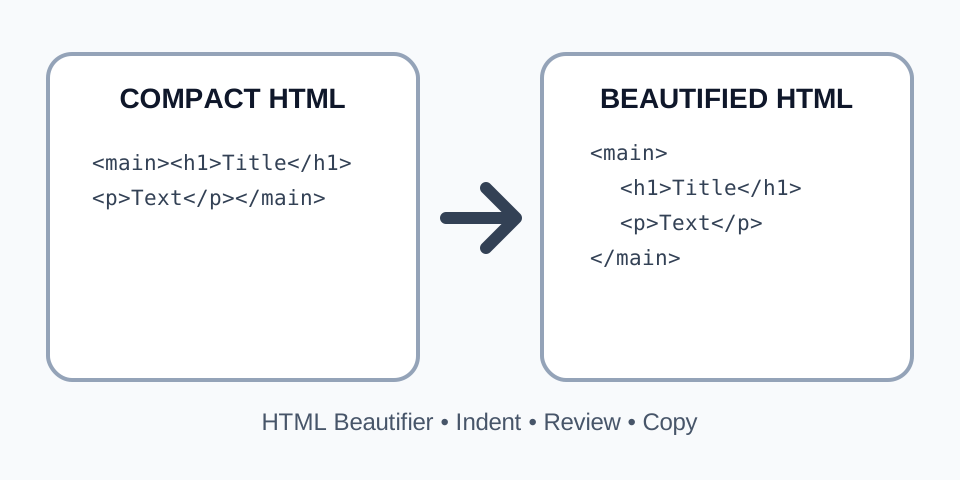
The HTML beautifier takes minified or badly indented HTML and prints it with one tag or text run per line, indented two spaces per nesting level. It is meant for reading and debugging: view-source output, a minified template, an email snippet or markup copied from a CMS becomes a tree you can follow.
The tool does a straightforward, predictable job and does not try to be a full HTML parser. It does not validate the markup and does not fix errors, so an unclosed tag will simply show up as wrong indentation, which is often the quickest way to find it. To go the other way, use the HTML Minifier.
Focused controls, predictable output, and a workflow designed around this exact transformation.
Nesting becomes visible, so you can see which element contains which.
Missing or extra closing tags show up as indentation that does not return to the left.
The tool treats HTML as text and never runs scripts from it.
You can beautify a single block, not only a complete document.
Practical details about input, output, privacy, limits, and the best way to use this tool.
It changes whitespace only: tags and text are re-printed on separate lines. Attributes, tag names and text content are not rewritten. Because inline elements such as links and bold text are also placed on their own lines, the rendered spacing around them can differ slightly from the original.
No. It does not validate or repair HTML. Unclosed tags make the indentation drift, which helps you locate the problem. To repair a document, fix it in your editor or use a validator.
Be careful. Whitespace inside <pre> and <textarea> is meaningful, and the tool does not treat these elements specially. Use the result for reading, and do not deploy it blindly when the page contains such elements.
No. Content inside <style> and <script> is treated as text. Use the CSS Beautifier or the JavaScript Beautifier for those parts.
Two spaces per nesting level.
Yes. Void elements such as br, img, input, meta and link, as well as tags written with a trailing slash, do not increase the depth.
For well-formed XML, use the XML Formatter, which parses the document and reports errors with line and column.
Every opening tag adds one level, every closing tag removes one, and text sits on its own line.
HomeAbout
Home


    About
The doctype stays at the left, and void elements such as meta and br do not add a level.
HiTextmore
Hi


      Text

      more
Browsers do not care how HTML is laid out, so templates, build tools and CMS exports often produce a single long line. The beautifier splits the markup into tags and text, puts each on its own line and indents it according to how deeply it is nested. The document is unchanged for the browser, but you can now read it.
Follow the left edge. A closing tag should line up with its opening tag. If the indentation keeps growing, a tag was never closed. If it snaps back too far, there is an extra closing tag. Optional end tags, such as an omitted </li> or </p>, are valid HTML but will also look like unclosed tags to this tool.
This is a lightweight formatter, not a parser. It does not validate, does not repair markup and does not preserve whitespace-sensitive blocks. Comments and the doctype are kept as separate lines. Check the result in a browser before using it anywhere other than for reading.
Shrink markup with the HTML Minifier, format styles with the CSS Beautifier, scripts with the JavaScript Beautifier, or XML with the XML Formatter.
For the exact syntax rules, see the HTML Standard: syntax.