Count words, characters, sentences, and paragraphs in text for writing, editing, SEO, study, and content planning
Process input directly in the browser Keep source and result separate Support copy-ready output Make changes easier to verify
INPUT Text to count
0 chars0 words0 lines
Add the complete draft or sample whose structure should be measured. Example: Paste an article, essay, product description or any other text to analyze.
Word and document counts
Statistics update from the text without changing your source.
Result ready
Practical examples
See how this tool works
Each example shows a realistic source value and the result produced by this specific tool.
Measure a short content sample
The source remains unchanged while the tool reports useful measurements.
Sample text
Paste an article, essay, product description or any other text to analyze.
Word Counter is a focused browser utility designed to count words, characters, sentences, and paragraphs in text for writing, editing, SEO, study, and content planning
This word counter keeps the original input separate from the processed result, which makes review easier and reduces accidental copying mistakes. It is useful when you need a quick answer but still want enough context to verify what changed.
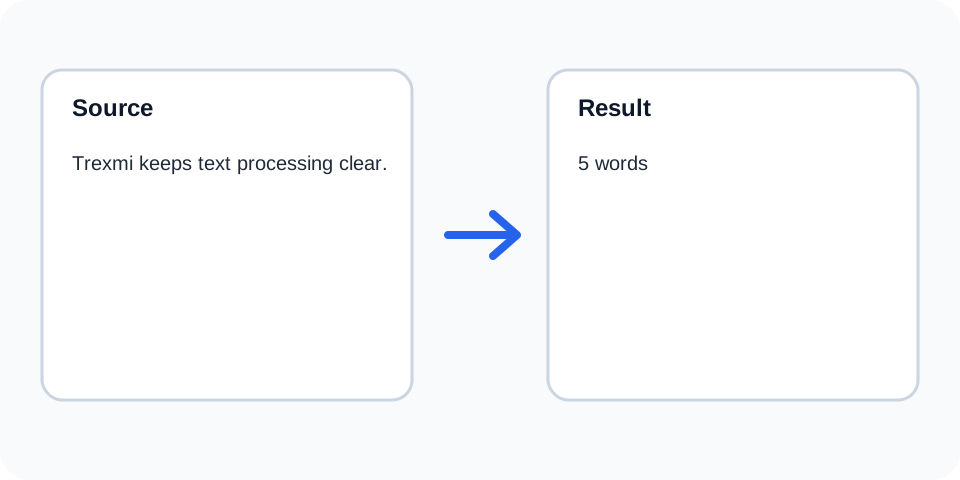
Paste representative content, run the operation, inspect the full result, and test it in the real destination before replacing production data. The visual guide below summarizes a safe input, process, review, and copy workflow.
A practical review workflow for Word Counter.
How to use
Paste the input. Add the complete value you want to process.
Choose settings. Review available options before running the tool.
Run the operation. Process the input once.
Inspect the output. Compare the complete result with the source.
Test and copy. Use the result only after checking it in the destination.
Built for the task
Why use Word Counter?
Focused controls, predictable output, and a workflow designed around this exact transformation.
01
Clear browser workflow
A focused operation produces a result that is easy to inspect and compare.
02
Source stays available
The original input remains visible for correction and verification.
03
Separate copy-ready result
Processed content is displayed independently from the source.
04
Safer final review
Practical checks help reduce mistakes before publishing or importing.
Useful answers
Questions about Word Counter
Practical details about input, output, privacy, limits, and the best way to use this tool.
Answer 01
What does the word counter do?
It count words, characters, sentences, and paragraphs in text for writing, editing, SEO, study, and content planning
Answer 02
Does the tool overwrite my original input?
No. The source remains visible while the processed result is shown separately.
Answer 03
Can I use Unicode characters?
Common Unicode text is supported, but unusual or malformed characters should be tested with representative input.
Answer 04
Why is my result different from what I expected?
Check for hidden spaces, line breaks, invalid syntax, partial input, or content that was already processed.
Answer 05
Can I process large text?
Yes, but test a smaller sample first and inspect the beginning, middle, and end of the final result.
Answer 06
Is the output guaranteed to work everywhere?
No. The receiving application, parser, import format, or publishing platform remains authoritative.
Answer 07
Should I keep a backup?
Yes. Keep an untouched copy whenever the source is important or difficult to recreate.
Answer 08
Can I paste confidential information?
Avoid pasting passwords, tokens, private keys, or sensitive production data into any environment you do not trust.
Answer 01
What does the word counter do?
It count words, characters, sentences, and paragraphs in text for writing, editing, SEO, study, and content planning
Answer 02
Does the tool overwrite my original input?
No. The source remains visible while the processed result is shown separately.
Answer 03
Can I use Unicode characters?
Common Unicode text is supported, but unusual or malformed characters should be tested with representative input.
Answer 04
Why is my result different from what I expected?
Check for hidden spaces, line breaks, invalid syntax, partial input, or content that was already processed.
Answer 05
Can I process large text?
Yes, but test a smaller sample first and inspect the beginning, middle, and end of the final result.
Answer 06
Is the output guaranteed to work everywhere?
No. The receiving application, parser, import format, or publishing platform remains authoritative.
Answer 07
Should I keep a backup?
Yes. Keep an untouched copy whenever the source is important or difficult to recreate.
Answer 08
Can I paste confidential information?
Avoid pasting passwords, tokens, private keys, or sensitive production data into any environment you do not trust.
The word counter applies one clearly defined transformation or analysis to the text supplied in the input area. The source remains visible while the result is produced separately, so you can compare both versions before copying anything.
Browser tools are convenient, but the destination system remains authoritative. A value that looks correct on screen can still fail because of hidden characters, unsupported syntax, a different character encoding, strict import rules, or an incomplete copy.
Common word counter use cases
Typical uses include editing, content migration, development, quality assurance, search optimization, documentation, data cleanup, form preparation, configuration review, and test-data creation. The word counter is especially helpful when a manual operation would be repetitive or easy to perform inconsistently.
Use a realistic sample instead of a simplified example whenever possible. Representative input exposes line breaks, punctuation, Unicode characters, spacing, separators, and edge cases that may otherwise remain hidden until publication or import.
Prepare input before using the word counter
Keep an untouched copy of important source content. Confirm that the complete value was pasted, including the first and last characters. Check for smart quotes, non-breaking spaces, tab characters, trailing whitespace, blank lines, and characters copied from rich-text editors.
For large inputs, test a smaller section first. A short trial makes it easier to understand the operation and confirm that the word counter matches the workflow you actually need.
Review the word counter result
Do not review only the first line. Inspect the beginning, middle, and end of the output. Compare totals, delimiters, nesting, spacing, or visible text according to the purpose of the tool. Copy the result only after it passes this comparison.
When the output will be imported into another platform, test one record or a staging copy before processing the full dataset. This simple step can prevent broad formatting errors and makes rollback much easier.
Troubleshooting unexpected output
If the result is empty or different from what you expected, confirm that the input is valid for the selected operation. Check whether it was already processed, partially processed, truncated, or copied with invisible formatting. Running the same conversion twice can also create a different result.
Try a minimal example, then add complexity gradually. This helps isolate the exact character or structure that causes the problem. The word counter should support verification, not replace testing in the destination application.
Privacy, security, and final checks
Avoid pasting passwords, private keys, access tokens, customer records, or confidential production information into any environment you do not trust. Encoding, formatting, counting, or minifying data does not automatically make it private or secure.
Before finishing, confirm that the entire output was copied, the destination accepts the result, and the original source is still available. A careful final check is faster than repairing a broken import, template, page, or configuration later.