01
Clean line edges
Applies one clear rule so the result is easier to inspect.
Start typing to search 227 tools.
Remove unwanted spaces around every line without changing the meaningful text inside each line.
Trim Whitespace is a focused browser utility that helps you remove unwanted spaces around every line without changing the meaningful text inside each line.
The trim whitespace workflow keeps the source available, applies one clearly named operation, and displays the result separately. This makes every change easier to inspect before the text is published, imported, shared, or reused.
Paste the complete source whenever possible, verify values that depend on context, and retain a backup for important documents or structured data.
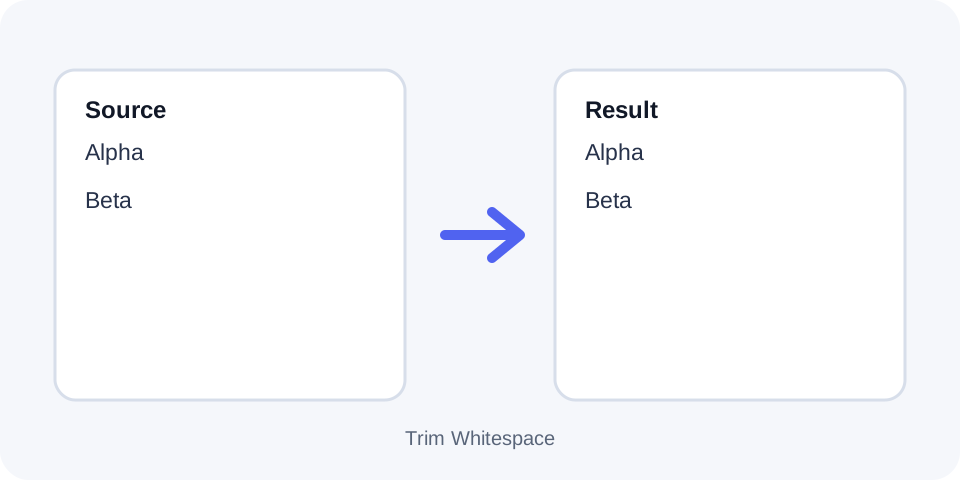
Focused controls, predictable output, and a workflow designed around this exact transformation.
Applies one clear rule so the result is easier to inspect.
Keeps the original text available for comparison and recovery.
Displays processed content separately before it is copied elsewhere.
Supports a deliberate workflow for publishing, importing, or reuse.
Practical details about input, output, privacy, limits, and the best way to use this tool.
The tool removes unwanted spacing at the beginning and end of each line.
No. Meaningful internal spaces remain unchanged.
Not necessarily. Use Remove Empty Lines for blank-line cleanup.
Leading or trailing tab characters may be treated as whitespace and removed.
Yes. It is useful for names, identifiers, paths, tags, and imported rows.
No. Punctuation and characters remain in place.
Not reliably after trimming, so keep the original source available.
Be careful with code and formats where leading whitespace has structural meaning.
The processor examines each line independently and removes whitespace before the first meaningful character and after the last meaningful character.
Work with a complete sample, compare the generated result with the source, and confirm the final text in its destination before replacing important data.
Spaces between words are preserved. This makes the operation different from collapsing spaces or removing all spaces.
Work with a complete sample, compare the generated result with the source, and confirm the final text in its destination before replacing important data.
Trailing spaces can cause failed comparisons, duplicate-looking values, and validation errors. Cleaning line edges produces more consistent entries.
Work with a complete sample, compare the generated result with the source, and confirm the final text in its destination before replacing important data.
Leading indentation can carry meaning in Python, YAML, Markdown, and other formats. Do not trim such content unless you understand the effect.
Work with a complete sample, compare the generated result with the source, and confirm the final text in its destination before replacing important data.
A line that contains only spaces may become empty. Tabs at the boundaries may also be removed as whitespace.
Work with a complete sample, compare the generated result with the source, and confirm the final text in its destination before replacing important data.
Compare representative lines and verify that no meaningful indentation or padding was intentionally required by the destination system.
Work with a complete sample, compare the generated result with the source, and confirm the final text in its destination before replacing important data.
Continue with a related utility, another focused tool, or a complementary workflow. Separate operations are easier to understand and reverse.
For general string-processing concepts, consult the MDN String reference.