01
Immediate rendered structure
See how headings, lists, quotes, links, and code will appear instead of reading syntax alone.
Start typing to search 227 tools.
Preview common Markdown syntax as rendered HTML so headings, lists, links, code blocks, emphasis, and structure can be reviewed before publishing.
Markdown Preview online renders Markdown as HTML so you can review headings, lists, links, images, emphasis, inline code, and fenced code blocks before publishing. Use it as a Markdown renderer, Markdown viewer, or quick Markdown to HTML preview.
Markdown Preview gives you a focused workflow for this task. Use markdown preview with representative input, review the complete result, and verify the output in the destination system before production use.
Markdown Preview renders Markdown text as formatted HTML so you can inspect headings, paragraphs, emphasis, lists, links, quotes, and code before publishing. Paste a document, generate the preview, and compare the visual result with the original Markdown source.
A markdown preview is useful for README files, documentation, knowledge bases, static-site content, issue descriptions, release notes, forum posts, and any editor that accepts Markdown. It helps catch broken list nesting, missing blank lines, incorrect fences, and unintended formatting.
Markdown implementations can differ. Confirm advanced syntax in the destination platform because tables, task lists, footnotes, raw HTML, and extensions may not behave identically everywhere.
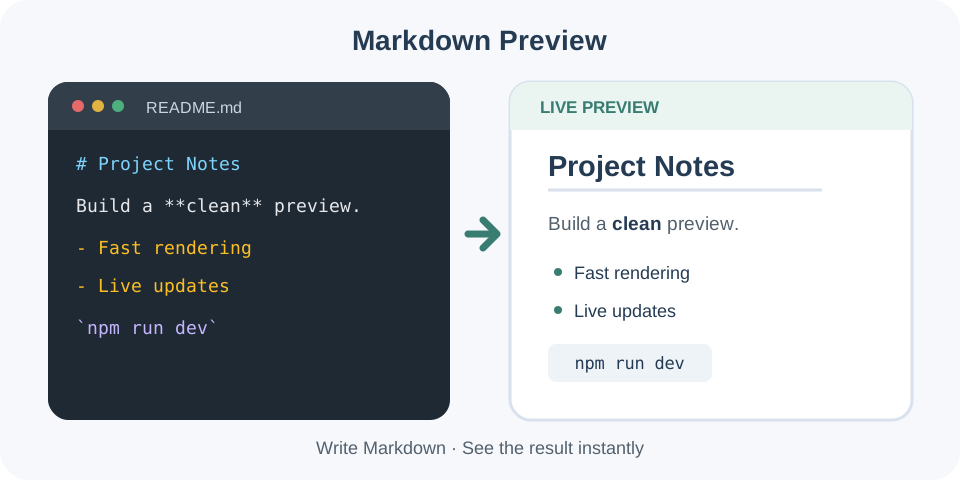
Focused controls, predictable output, and a workflow designed around this exact transformation.
See how headings, lists, quotes, links, and code will appear instead of reading syntax alone.
Keep the Markdown source available while checking the generated result.
Find missing blank lines, unclosed code fences, and broken list indentation before publishing.
Review rendered content and destination compatibility before replacing a live document.
Practical details about input, output, privacy, limits, and the best way to use this tool.
Markdown Preview renders common Markdown syntax as safe HTML so structure and formatting can be reviewed before publishing.
Yes. You can use Markdown Preview online to review representative input before moving the result into your workflow.
No. The source remains available while the generated result appears separately for review.
Tools explain and transform input, but the destination application, server, parser, or publishing platform remains authoritative.
Common Unicode text is preserved where the selected operation and destination format support it.
Reduce the input to the smallest example that reproduces the issue, verify hidden whitespace and delimiters, then restore content gradually.
Avoid passwords, tokens, private keys, personal records, and unreleased content unless you fully trust the processing environment.
Review the beginning and end, confirm that no section is missing, and test critical output in a safe destination environment.
Markdown Preview works best when the source is realistic and the result is reviewed before export. Use markdown preview on a small example first, then repeat the same markdown preview workflow with a production-like sample that contains no private data.
After running markdown preview, compare the source and result, check special characters and empty values, and test the output in the receiving application. A reliable markdown preview workflow keeps the original input available until the destination accepts the result.
Typical mistakes include incomplete input, incorrect assumptions about defaults, hidden whitespace, encoding differences, and skipping final validation. When markdown preview gives an unexpected result, reduce the example to the smallest failing case and add complexity back one change at a time.
Continue with Markdown To Html or Html Beautifier for a second formatting, validation, or verification step.
Markdown uses plain-text markers to describe document structure. Hash characters create headings, blank lines separate paragraphs, asterisks or underscores add emphasis, and hyphens can create lists. this preview tool converts those markers into a readable rendering while leaving the source available for correction.
Use heading levels in a logical order. A page normally has one primary heading, followed by meaningful H2 and H3 sections. Skipping levels may still render, but it can weaken accessibility and document navigation. The rendered page makes hierarchy visible, so scan the page as a reader would.
Use the rendered preview as a focused review step, then confirm the result with the system that will actually receive or publish the data.
Nested lists depend on consistent indentation. Mixed tabs and spaces or missing blank lines can create unexpected output. Numbered lists may automatically renumber in the rendered result. Check whether the destination expects a specific indentation width and avoid using visual alignment that changes the logical nesting.
Verify every link destination and image URL. Parentheses, spaces, and special characters may need escaping or encoded URLs. Reference-style links require matching definitions. The rendered result can show whether a link was recognized, but it cannot guarantee that the external destination exists or is safe.
Use backticks for inline code and triple backticks or tildes for fenced blocks. A missing closing fence can consume the remainder of the document. Language identifiers may enable syntax highlighting on some platforms, but not all renderers support the same languages or themes.
Use the rendered preview as a focused review step, then confirm the result with the system that will actually receive or publish the data.
CommonMark covers a broadly shared core, while GitHub Flavored Markdown and other platforms add tables, task lists, autolinks, footnotes, alerts, or custom containers. The browser renderer provides a practical check for supported syntax, but the destination renderer remains the final authority.
Review heading order, list nesting, code fences, links, images, blockquotes, and blank lines. Confirm that raw HTML or embedded content is allowed. Check mobile readability and accessibility where possible. Save the original Markdown, test the rendered result in the target platform, and publish only after the two outputs agree.
When the rendered page differs from the source you expected, inspect one structural feature at a time. Start with blank lines around headings, lists, blockquotes, and code fences. Then check whether tabs, spaces, or copied smart punctuation changed the meaning of the markers. A small isolated sample is easier to debug than an entire document.
Rendering errors often cascade from the first malformed section. An unclosed code fence, an unmatched emphasis marker, or incorrect list indentation can affect everything that follows. Locate the earliest unexpected result, correct it, and preview the document again before changing later sections.
The same source can render differently in CommonMark, GitHub Flavored Markdown, a static-site generator, or a custom CMS. Use this online editor for a fast visual check, then test tables, task lists, footnotes, embedded HTML, and automatic links in the final publishing platform.
Continue with Markdown to HTML or HTML Encoder for a connected workflow.
For standards and implementation details, consult the CommonMark Specification.