01
Focused operation
A clearly defined rule produces output that is easy to inspect.
Start typing to search 227 tools.
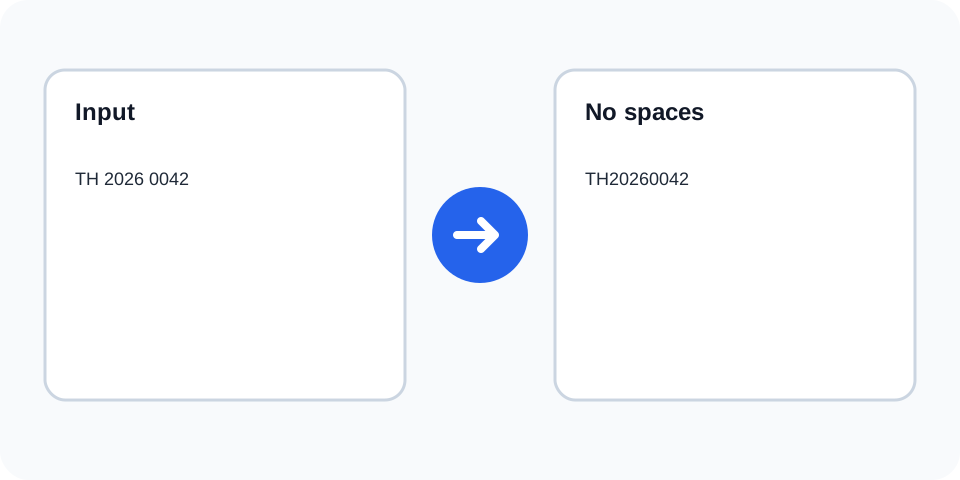
Remove every whitespace character, including spaces, tabs, and line breaks, to create one uninterrupted string.
Remove All Spaces is a focused browser utility that removes all whitespace with a transparent, reviewable workflow.
The workspace keeps the source available, applies one clearly named operation, and displays the result separately. This makes the output easier to compare before it is published, imported, shared, or reused.
Use the complete source whenever possible, verify context-sensitive values, and retain a backup for important documents or structured data.
Focused controls, predictable output, and a workflow designed around this exact transformation.
A clearly defined rule produces output that is easy to inspect.
The original text stays available for comparison and recovery.
Processed content is displayed independently from the source.
Review the complete output before copying it elsewhere.
Practical details about input, output, privacy, limits, and the best way to use this tool.
Yes. Spaces, tabs, and line breaks are removed.
No. Trimming removes whitespace around lines, while this operation removes whitespace everywhere.
Yes. Adjacent words become one uninterrupted string.
Yes. Many programming and data formats depend on whitespace or line structure.
No. Punctuation remains unless it is itself part of a whitespace sequence.
Common Unicode whitespace is generally matched, but verify pasted content.
Use the preserved source or browser history; the tool cannot reliably restore missing boundaries.
It is useful for compact identifiers and controlled normalization tasks where separators are unwanted.
The operation removes ordinary spaces as well as tabs, line breaks, and other characters recognized as whitespace. The result is a continuous string with no visual separators.
Review the source and generated result together, keep an untouched backup, and confirm the output in the destination system before relying on it.
Collapsing spaces keeps one separator between text fragments, while this tool removes separators completely. Choose carefully because the two operations produce very different results.
Review the source and generated result together, keep an untouched backup, and confirm the output in the destination system before relying on it.
Compact strings can help normalize order numbers, reference codes, tracking values, and comparison inputs. Confirm that spaces are not meaningful before using the output as an identifier.
Review the source and generated result together, keep an untouched backup, and confirm the output in the destination system before relying on it.
Removing all whitespace from prose, code, CSV, JSON, or markup can make the content invalid or change its meaning. Use a format-aware tool when spacing has structural significance.
Review the source and generated result together, keep an untouched backup, and confirm the output in the destination system before relying on it.
Text copied from websites or documents may contain non-breaking spaces or invisible separators. Review the result because visually similar whitespace characters can originate from different sources.
Review the source and generated result together, keep an untouched backup, and confirm the output in the destination system before relying on it.
Keep the original source and compare character sequences after processing. Once separators disappear, reconstructing the intended word boundaries may be difficult.
Review the source and generated result together, keep an untouched backup, and confirm the output in the destination system before relying on it.
Remove All Spaces works best when you start with representative text and keep the original source available. Use remove all spaces on a small sample first, compare every change, and confirm the result before processing important content.
When using remove all spaces, check whitespace, punctuation, Unicode characters, line endings, and any values whose meaning depends on formatting. This review step helps prevent accidental changes that are difficult to reverse later.
Continue with a related utility, another focused tool, or a complementary workflow. Keeping operations separate makes changes easier to understand and reverse.
For general string-processing concepts, consult the MDN String reference.