01
Tab-specific cleanup
Removes tab characters without targeting ordinary letters or punctuation.
Start typing to search 227 tools.
Remove tab characters from text while keeping the remaining content and line structure visible for comparison.
Remove Tabs is a focused browser utility that remove tab characters from text while keeping the remaining content and line structure visible for comparison.
The workspace keeps the source available, applies one clearly named operation, and displays the result separately. This makes the output easier to compare before it is published, imported, shared, or reused.
Use the complete source whenever possible, verify context-sensitive values, and retain a backup for important documents or structured data.
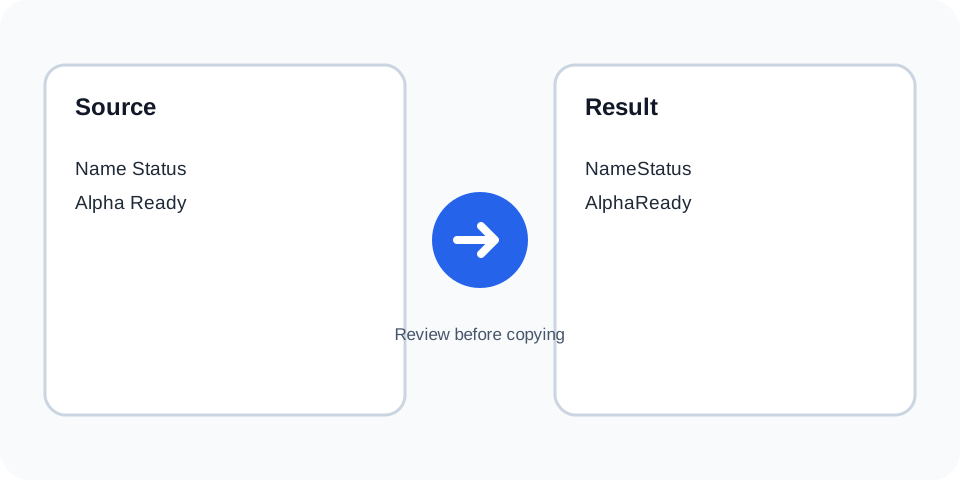
Focused controls, predictable output, and a workflow designed around this exact transformation.
Removes tab characters without targeting ordinary letters or punctuation.
Existing line breaks stay in place for easier comparison.
The original text is available while the result is reviewed.
Clean content copied from spreadsheets, code editors, and tab-aligned documents.
Practical details about input, output, privacy, limits, and the best way to use this tool.
No. The operation targets tab characters, not ordinary spaces.
The neighboring values may join together after the tab is removed.
Yes. Tabs are removed independently of line breaks.
Use Tabs to Spaces when separation must remain visible.
No. Tabs are delimiters in TSV files, so removing them destroys the column structure.
Yes. Tab-based indentation is removed.
Not reliably from the result. Keep the original source.
They may be ordinary spaces rather than tab characters.
A tab is a control character commonly used for indentation or column separation. This operation removes that character wherever it appears.
Review the source and generated result together, keep an untouched backup, and confirm the output in the destination system before relying on it.
Tabs and spaces may look similar on screen but are different characters. Ordinary spaces remain after this operation.
Review the source and generated result together, keep an untouched backup, and confirm the output in the destination system before relying on it.
Tabs often separate columns in copied spreadsheet data. Removing them can merge fields and destroy structure.
Review the source and generated result together, keep an untouched backup, and confirm the output in the destination system before relying on it.
Programming languages and configuration files may depend on tab indentation. Process only a disposable copy.
Review the source and generated result together, keep an untouched backup, and confirm the output in the destination system before relying on it.
When visual separation should remain, converting each tab to a chosen number of spaces is usually safer.
Review the source and generated result together, keep an untouched backup, and confirm the output in the destination system before relying on it.
Check every location where columns or indented blocks may have collapsed after processing.
Review the source and generated result together, keep an untouched backup, and confirm the output in the destination system before relying on it.
Continue with a related utility, another focused tool, or a complementary workflow. Keeping operations separate makes changes easier to understand and reverse.
For general string-processing concepts, consult the MDN String reference.