01
Understand nested JSON quickly
Objects and arrays are displayed as a hierarchy with child counts, indexes and value types.
Start typing to search 227 tools.
View JSON online as a readable tree, pretty-printed document, or flattened JSON path list with value types and depth controls.
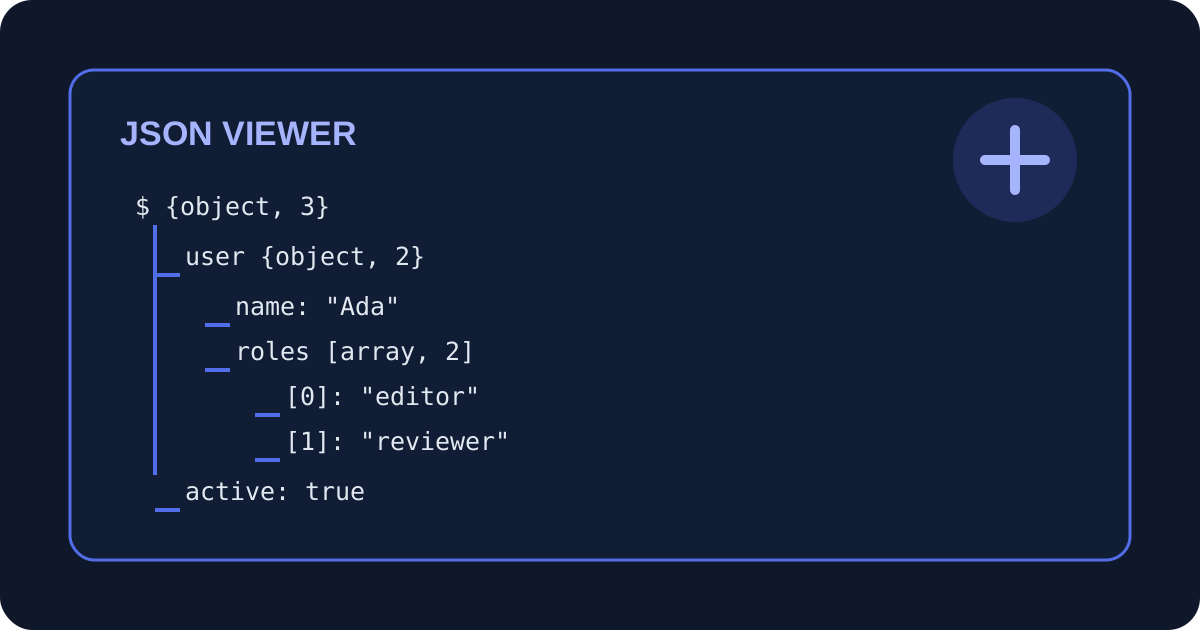
JSON Viewer turns compact or deeply nested JSON into an easier structure to inspect. Instead of reading one long serialized string, you can view objects, arrays, keys, indexes, values and data types in a clear hierarchy. The tool is useful for API responses, configuration files, webhooks, application logs and test fixtures.
Choose Readable tree for a compact hierarchy, Pretty JSON when you need standard indentation, or JSON paths and values when you need to locate fields precisely. A maximum-depth control prevents very deeply nested documents from producing an unmanageable result. Processing happens through Trexmi without sending the document to an external viewing service.
Focused controls, predictable output, and a workflow designed around this exact transformation.
Objects and arrays are displayed as a hierarchy with child counts, indexes and value types.
Path mode lists scalar values using paths such as $.user.roles[0], which simplifies debugging and mapping.
Pretty mode returns valid indented JSON that can be copied into documentation, tests or source code.
A configurable depth limit keeps recursive data readable and prevents enormous visual output.
Practical details about input, output, privacy, limits, and the best way to use this tool.
It displays valid JSON as a readable tree, pretty-printed JSON, or a flattened list of paths and values.
No. It parses the document for display and leaves the source field unchanged.
Yes. Nested objects and arrays are processed recursively up to the selected maximum depth.
Path mode shows scalar fields using locations such as $.user.name and $.items[0].sku.
The selected maximum depth has been reached. Increase it to inspect deeper child values.
Yes, the workspace accepts supported JSON text files within the active file-size limit.
JavaScript object syntax may contain comments, single quotes or unquoted keys. Standard JSON does not allow those features.
Use JSON Compare or JSON Diff Viewer after inspecting each document.
Learn JSON objects, arrays, value types, validation, formatting, parsing, API workflows, and common syntax errors.
Readable tree mode emphasizes hierarchy and labels each scalar as a string, integer, number, boolean or null value. Pretty JSON mode is best when you need valid JSON with standard indentation. Paths mode flattens scalar values into paths, making it easier to compare field locations, write mappings or diagnose missing properties.
The input must follow JSON syntax: property names and strings use double quotes, trailing commas are not allowed and comments are not part of standard JSON. JavaScript object literals are not always valid JSON. When the document fails, use the JSON Validator to locate the syntax error. A depth limit does not remove data from the original source; it only shortens the displayed hierarchy.
Remove secrets, tokens and personal data before sharing JSON. Validate large API responses before interpreting them. Use path mode to identify exact fields, then compare revisions with JSON Diff Viewer. Use JSON Schema Generator when the goal is to document a reusable structure rather than inspect one example. JSON syntax is defined by RFC 8259.