01
Remove accidental double spaces
Normalize repeated spacing in articles, descriptions, messages, and imported records.
Start typing to search 227 tools.
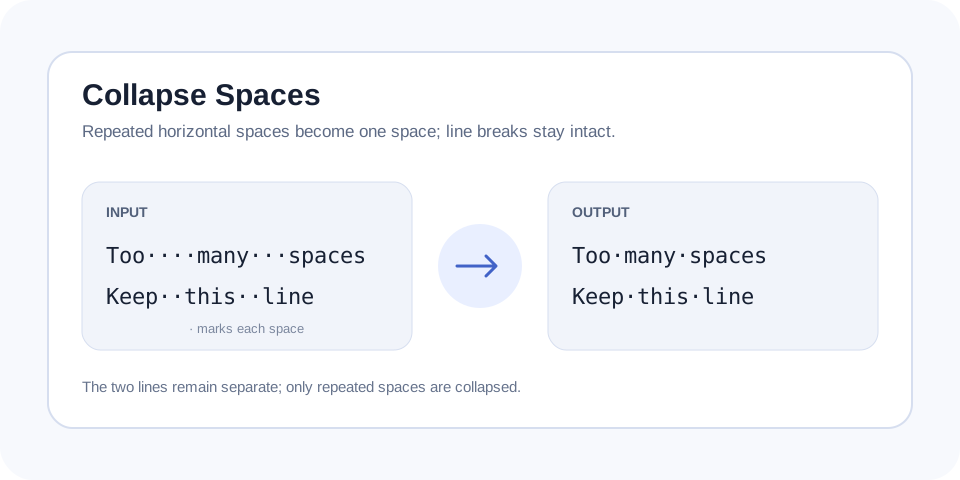
Collapse repeated horizontal spaces into one space while preserving line breaks, paragraph structure, and the order of your text.
Collapse Spaces cleans repeated horizontal spacing by replacing each run of ordinary spaces with a single space. It is designed for copied documents, generated text, form submissions, product data, and drafts where accidental double or triple spaces make content inconsistent.
The operation is intentionally narrower than removing all whitespace. Existing line breaks remain, so paragraphs, lists, and multiline records do not get flattened into one continuous sentence. This distinction matters when the text will be pasted into a CMS, spreadsheet, support system, or code review where line structure still carries meaning.
Whitespace can include spaces, tabs, non-breaking spaces, and other Unicode separators. This tool focuses on the spacing rule described in its workspace. Review unusual pasted content and use a dedicated tab or trimming tool when the source contains indentation or leading and trailing whitespace.
Focused controls, predictable output, and a workflow designed around this exact transformation.
Normalize repeated spacing in articles, descriptions, messages, and imported records.
Preserve line breaks instead of merging paragraphs and list items into one block.
Create cleaner source content for publishing, comparison, search, and data entry.
Change only repeated spaces rather than deleting all whitespace from the text.
Practical details about input, output, privacy, limits, and the best way to use this tool.
It reduces repeated horizontal spaces to a single space. It does not intentionally remove words, punctuation, or line breaks.
Yes. Existing line breaks remain, so paragraphs and multiline records keep their structure.
Use the dedicated Remove Tabs or Tabs to Spaces tool when tab characters need specific handling.
Its main purpose is repeated internal spacing. Use Trim Whitespace when every line also needs its outer whitespace removed.
PDFs, web pages, justified documents, OCR output, and generated content can insert repeated or unusual whitespace during copying.
Extra spaces can create uneven layouts, failed exact matches, inconsistent exports, and unnecessary differences between text versions. Cleaning them makes copy easier to review and compare.
A space separates content on the same line, while a line break creates structure between records or paragraphs. This tool keeps that distinction and avoids flattening the document.
Continue the workflow with Trim Whitespace or Remove All Spaces when the source needs another focused transformation.
Text copied from PDFs, rich editors, email, and web pages may contain hidden formatting or non-breaking spaces. Visual inspection is useful after normalization, especially when the destination has strict formatting rules.
Use Trim Whitespace for outer spaces, Tabs to Spaces for indentation, Remove Empty Lines for blank rows, and Remove All Spaces only when an uninterrupted string is required.
After normalization, compare the cleaned copy with the source rather than relying only on its appearance. Check tables, indentation, code fragments, aligned columns, and content copied from PDFs because repeated spacing may have been intentional in those contexts. Search for tabs and non-breaking spaces when ordinary spaces were not the only cause of inconsistent layout. Finally, paste a small sample into the destination and confirm that its editor does not insert new formatting. These checks keep a simple whitespace cleanup from changing meaningful structure.
For additional background, consult MDN reference for whitespace handling.