01
Digit removal
Deletes numeric digits through one clearly defined operation.
Start typing to search 227 tools.
Remove numeric digits from text while keeping letters, punctuation, spacing, and line order available for review.
Remove Numbers is a focused browser utility that remove numeric digits from text while keeping letters, punctuation, spacing, and line order available for review.
The workspace keeps the source available, applies one clearly named operation, and displays the result separately. This makes the output easier to compare before it is published, imported, shared, or reused.
Use the complete source whenever possible, verify context-sensitive values, and retain a backup for important documents or structured data.
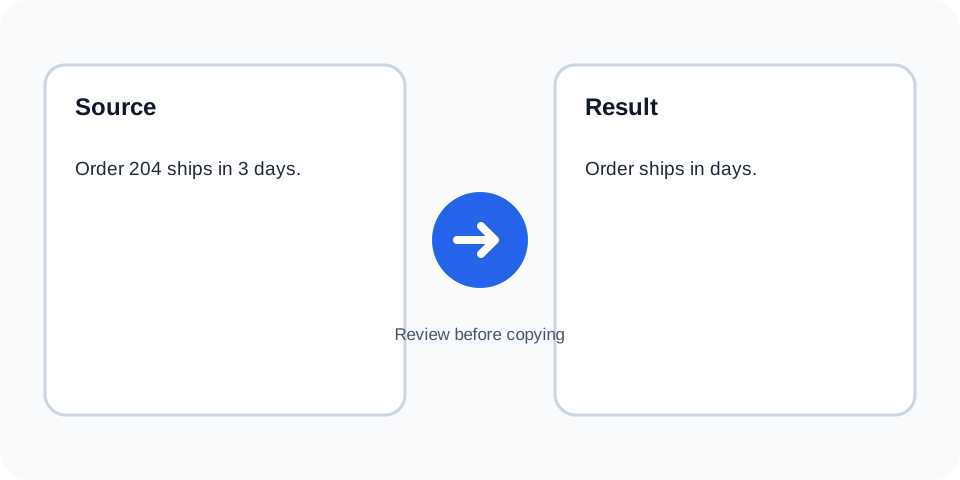
Focused controls, predictable output, and a workflow designed around this exact transformation.
Deletes numeric digits through one clearly defined operation.
Letters, punctuation, and line breaks remain available for review.
The processed output is shown independently from the source.
Useful for anonymized samples, labels, and nonnumeric text comparisons.
Practical details about input, output, privacy, limits, and the best way to use this tool.
Yes. Numeric digits are removed wherever they appear in the input.
No. Punctuation is not the target of this operation.
No. Number words remain because they are letters.
The digits are removed, while punctuation such as the decimal point may remain.
Yes. Dates, prices, versions, SKUs, and identifiers may lose essential information.
Yes, unless another tool-specific normalization affects whitespace.
Not from the result alone. Keep the source text.
Only after testing a copy, because numeric fields may be essential.
The tool deletes numeric digits from the supplied text. It does not interpret whether a number represents a date, price, count, or identifier.
Review the source and generated result together, keep an untouched backup, and confirm the output in the destination system before relying on it.
Non-digit characters are retained, which can leave doubled spaces or punctuation that requires a second cleanup step.
Review the source and generated result together, keep an untouched backup, and confirm the output in the destination system before relying on it.
Removing digits from structured values changes their meaning. Review every date, amount, dimension, and version string.
Review the source and generated result together, keep an untouched backup, and confirm the output in the destination system before relying on it.
SKUs, tracking numbers, account references, and filenames often depend on digits and should be protected.
Review the source and generated result together, keep an untouched backup, and confirm the output in the destination system before relying on it.
After digit removal, use a spacing tool only when the remaining structure has been checked.
Review the source and generated result together, keep an untouched backup, and confirm the output in the destination system before relying on it.
Search the output for isolated punctuation and unexpected gaps before publishing or importing it.
Review the source and generated result together, keep an untouched backup, and confirm the output in the destination system before relying on it.
Continue with a related utility, another focused tool, or a complementary workflow. Keeping operations separate makes changes easier to understand and reverse.
For general string-processing concepts, consult the MDN String reference.