01
Create one item per line
Turn a compact inline list into vertical rows suitable for spreadsheets and editors.
Start typing to search 227 tools.
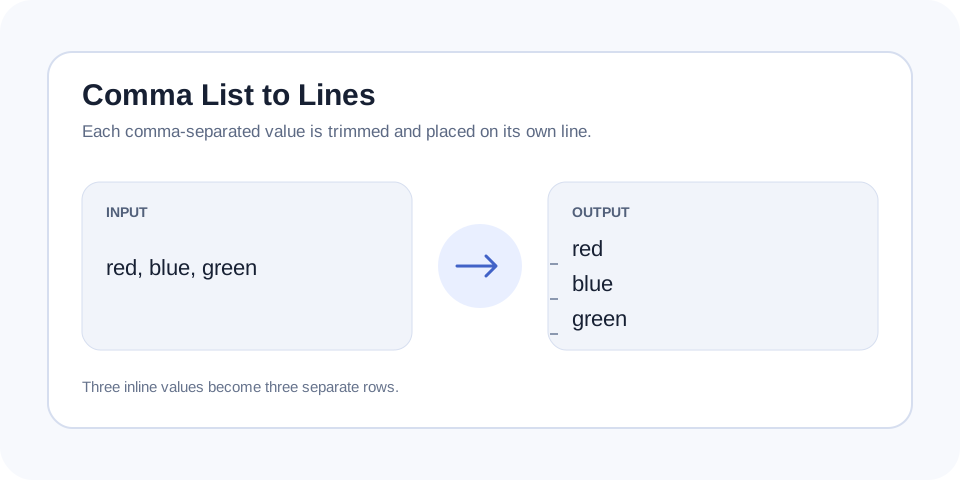
Convert comma-separated values into one trimmed item per line, omit empty entries, and prepare a clean vertical list for spreadsheets or imports.
Comma List To Lines gives you a focused workflow for this task. Use comma list to lines with representative input, review the complete result, and verify the output in the destination system before production use.
Comma List to Lines converts a comma-separated sequence into a vertical list with one trimmed value on each line. It is useful for keywords, tags, product attributes, filenames, categories, email labels, and other values that need to move from an inline field into a spreadsheet column or line-based editor.
The converter treats commas as separators, removes surrounding outer spaces from each item, and omits empty entries. The order of valid values remains unchanged. It does not automatically sort, deduplicate, translate, or correct the content, so the result stays easy to compare with the original list.
This is a simple plain-text list converter, not a complete CSV parser. Quoted fields containing commas, multiline CSV records, and escaped delimiters require spreadsheet or data-processing software that understands the full CSV format. Use this tool when each comma genuinely separates one independent item.
Focused controls, predictable output, and a workflow designed around this exact transformation.
Turn a compact inline list into vertical rows suitable for spreadsheets and editors.
Remove accidental outer spaces around each separated value automatically.
Keep items in their original sequence for easy comparison and controlled imports.
Sort, deduplicate, prefix, quote, or reverse the resulting rows in a predictable workflow.
Practical details about input, output, privacy, limits, and the best way to use this tool.
It uses commas as separators and places each non-empty trimmed value on a new line.
No. Quoted fields, escaped commas, headers, and multiline CSV records should be handled by a dedicated CSV parser or spreadsheet application.
No. Duplicate values remain so the conversion is transparent. Use Remove Duplicate Lines afterward when only unique rows are needed.
No. The original order is preserved. Use Sort Lines when alphabetical or natural ordering is required.
Outer spaces around each separated value are trimmed, while spaces inside a multiword value remain.
Comma List To Lines works best when the source is realistic and the result is reviewed before export. Use comma list to lines on a small example first, then repeat the same comma list to lines workflow with a production-like sample that contains no private data.
After running comma list to lines, compare the source and result, check special characters and empty values, and test the output in the receiving application. A reliable comma list to lines workflow keeps the original input available until the destination accepts the result.
Typical mistakes include incomplete input, incorrect assumptions about defaults, hidden whitespace, encoding differences, and skipping final validation. When comma list to lines gives an unexpected result, reduce the example to the smallest failing case and add complexity back one change at a time.
Continue with Lines To Comma List or Remove Duplicate Lines for a second formatting, validation, or verification step.
Many forms and CMS fields store tags or categories in one comma-separated line, while spreadsheets and batch editors require one value per row. Converting the layout removes repetitive manual line breaks.
A comma can be both punctuation and a data delimiter. When a value itself contains a comma, a simple splitter cannot determine the intended structure. Confirm the source format before conversion.
Continue the workflow with Lines to Comma List or Sort Lines when the source needs another focused transformation.
After conversion, check duplicates, blank values, capitalization, and required headers. A clean-looking list can still fail an import when the destination expects a specific encoding or column schema.
Remove Duplicate Lines can keep only first occurrences, Sort Lines can organize values, and Prefix Lines can add labels or syntax before every row.
Review the vertical result before importing it anywhere. Confirm that personal names, addresses, product titles, and descriptions did not contain commas that were meant as punctuation. Count the source values and compare that total with the output rows, allowing for empty entries that the converter intentionally omits. Check character encoding, capitalization, duplicate values, and any header required by the destination. For important datasets, test a small sample first. A simple delimiter conversion is reliable only when the source really uses commas as item boundaries.
Use this converter when a compact list must become clean vertical rows. this converter is especially useful before spreadsheet imports, CMS updates, and list cleanup.
For additional background, consult RFC 4180 overview of CSV formatting.