01
Ascending order
Organizes complete lines from A to Z or from lower to higher natural values.
Start typing to search 227 tools.
Sort lines in ascending alphabetical or natural order while preserving the original source for comparison.
Sort Lines is a focused browser utility that helps you sort lines in ascending alphabetical or natural order while preserving the original source for comparison.
The workspace keeps the source available, applies one clearly named operation, and displays the result separately. This makes the output easier to compare before it is published, imported, shared, or reused.
Use the complete source whenever possible, verify context-sensitive values, and retain a backup for important documents or structured data.
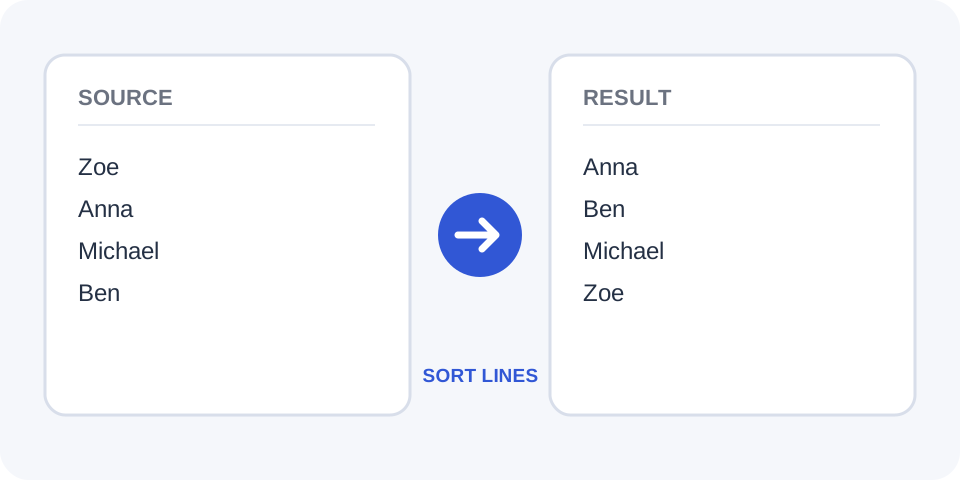
Focused controls, predictable output, and a workflow designed around this exact transformation.
Organizes complete lines from A to Z or from lower to higher natural values.
Treats each line as a separate sortable entry.
Compare the sorted result with the initial list before replacing anything.
Prepare names, labels, keywords, paths, and other line-based data for reuse.
Practical details about input, output, privacy, limits, and the best way to use this tool.
No. Each entire line is treated as one sortable item.
Yes. This tool is intended for ascending alphabetical or natural order.
Comparison may normalize case, while the original capitalization of each line remains visible in the result.
Duplicates remain unless they are removed with a separate operation.
They may appear at one end of the result, so remove them first when they are not meaningful.
Natural sorting is designed to handle values such as Item 2 before Item 10.
Leading symbols and punctuation can affect comparison, so inspect entries that begin with special characters.
Use Sort Lines Descending when you need the opposite direction.
The processor compares each complete line and arranges the entries from the beginning of the selected order to the end.
Review the first, middle, and last entries after sorting, and confirm how blank lines, capitalization, numbers, and duplicates were handled.
Uppercase and lowercase variants may compare as equivalent or nearby values. Review names and codes where exact case rules matter.
Review the first, middle, and last entries after sorting, and confirm how blank lines, capitalization, numbers, and duplicates were handled.
Natural order interprets digit sequences as numbers, which prevents Item 10 from appearing before Item 2.
Review the first, middle, and last entries after sorting, and confirm how blank lines, capitalization, numbers, and duplicates were handled.
Leading spaces can affect placement. Trim unwanted whitespace and remove empty lines before sorting important lists.
Review the first, middle, and last entries after sorting, and confirm how blank lines, capitalization, numbers, and duplicates were handled.
Sorting groups matching entries together but does not delete them. This can make duplicates easier to spot.
Review the first, middle, and last entries after sorting, and confirm how blank lines, capitalization, numbers, and duplicates were handled.
Review the beginning, middle, and end of a long result before copying it into a spreadsheet, CMS, or application.
Review the first, middle, and last entries after sorting, and confirm how blank lines, capitalization, numbers, and duplicates were handled.
Sort Lines works best when you start with representative text and keep the original source available. Use sort lines on a small sample first, compare every change, and confirm the result before processing important content.
When using sort lines, check whitespace, punctuation, Unicode characters, line endings, and any values whose meaning depends on formatting. This review step helps prevent accidental changes that are difficult to reverse later.
Continue with a related utility, another focused tool, or a complementary workflow. Keeping operations separate makes changes easier to understand and reverse.
For general string-processing concepts, consult the MDN String reference.