01
Selected-word removal
Targets the word entered in the tool instead of applying a broad cleanup.
Start typing to search 227 tools.
Remove word with a focused browser utility that targets the entered term while keeping the original source visible for careful comparison.
Remove Word gives you a focused workflow for this task. Use remove word with representative input, review the complete result, and verify the output in the destination system before production use.
remove word remove word with a focused browser utility that targets the entered term while keeping the original source visible for careful comparison.
The workspace keeps the source available, applies one clearly named operation, and displays the result separately. This makes the output easier to compare before it is published, imported, shared, or reused.
Use the complete source whenever possible, verify context-sensitive values, and retain a backup for important documents or structured data.
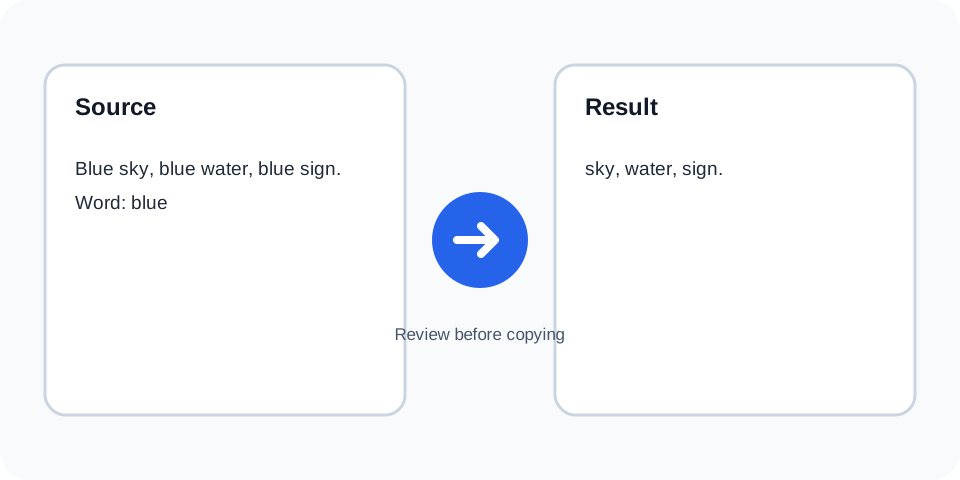
Focused controls, predictable output, and a workflow designed around this exact transformation.
Targets the word entered in the tool instead of applying a broad cleanup.
Keep the original text available while reviewing every removal.
Processed text is displayed independently for easier comparison.
Remove unwanted terms from notes, drafts, lists, or repeated labels.
Practical details about input, output, privacy, limits, and the best way to use this tool.
Check the tool setting and result; matching may normalize case depending on the processor.
A word-focused operation should target complete matches, but verify compound and attached forms.
Punctuation may remain, so review commas, brackets, and quotation marks.
This tool is designed around one selected word per operation.
No. Grammar and spacing may require manual editing afterward.
Yes, but review context because the same term may be meaningful elsewhere.
The workspace keeps the source separate from the processed result.
Use the original source; the result does not retain removed positions.
Remove Word works best when the source is realistic and the result is reviewed before export. Use remove word on a small example first, then repeat the same remove word workflow with a production-like sample that contains no private data.
After running remove word, compare the source and result, check special characters and empty values, and test the output in the receiving application. A reliable remove word workflow keeps the original input available until the destination accepts the result.
Typical mistakes include incomplete input, incorrect assumptions about defaults, hidden whitespace, encoding differences, and skipping final validation. When remove word gives an unexpected result, reduce the example to the smallest failing case and add complexity back one change at a time.
Continue with Find And Replace or Word Counter for a second formatting, validation, or verification step.
The tool uses the entered target to locate matching occurrences in the source and removes them from the generated result.
Review the source and generated result together, keep an untouched backup, and confirm the output in the destination system before relying on it.
Verify whether punctuation, hyphens, possessives, and compound forms are treated as the same word in your specific input.
Review the source and generated result together, keep an untouched backup, and confirm the output in the destination system before relying on it.
A target may appear in uppercase, lowercase, or title case. Compare the result to confirm the intended matching behavior.
Review the source and generated result together, keep an untouched backup, and confirm the output in the destination system before relying on it.
Removing a word can leave extra spaces, repeated punctuation, or incomplete sentence structure that needs editing.
Review the source and generated result together, keep an untouched backup, and confirm the output in the destination system before relying on it.
The same word may have different meanings in different passages. Review every occurrence in important content.
Review the source and generated result together, keep an untouched backup, and confirm the output in the destination system before relying on it.
Read the complete result naturally and compare key passages with the source before publishing it.
Review the source and generated result together, keep an untouched backup, and confirm the output in the destination system before relying on it.
Use this cleanup tool when a specific unwanted term appears in notes, drafts, keyword lists, labels, or imported content. Matching behavior may depend on case sensitivity, punctuation, and whether the target appears inside a longer word, so test a short sample before processing important material. this cleanup tool should not be treated as a general rewrite tool because deleting a word can change grammar, spacing, or meaning. Review every affected sentence, check repeated occurrences, keep the original source, and copy the result only after confirming that intentional uses were not removed.
this cleanup tool keeps the source and result separate so the transformation remains easy to inspect, explain, and reverse when necessary.
Continue with a related utility, another focused tool, or a complementary workflow. Keeping operations separate makes changes easier to understand and reverse.
For general string-processing concepts, consult the MDN String reference.