01
Reverse line order
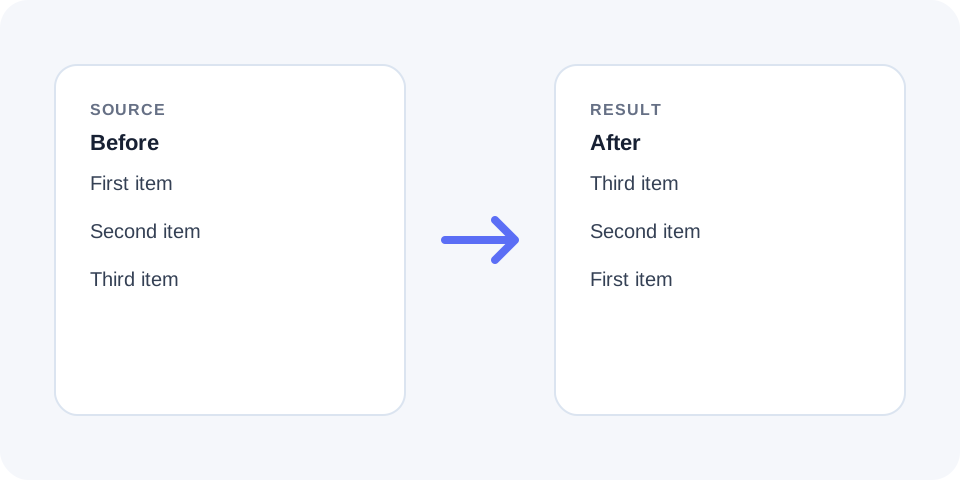
Moves the last line to the top and the first line to the bottom without rewriting the line content.
Start typing to search 227 tools.
Reverse lines with a focused browser tool that changes only the order of complete lines while keeping every word, number, symbol, and punctuation mark inside each line unchanged.
Reverse Lines reverse lines with a focused browser tool that changes only the order of complete lines while keeping every word, number, symbol, and punctuation mark inside each line unchanged.
The workspace keeps the source available, applies one clearly named operation, and displays the result separately. This makes the output easier to compare before it is published, imported, shared, or reused.
Use the complete source whenever possible, verify context-sensitive values, and retain a backup for important documents or structured data.
Focused controls, predictable output, and a workflow designed around this exact transformation.
Moves the last line to the top and the first line to the bottom without rewriting the line content.
Characters, words, and punctuation inside each line remain in their original order.
The reversed output appears separately so the new sequence can be compared with the source.
Useful for chronological logs, ordered notes, exports, and one-item-per-line data.
Practical details about input, output, privacy, limits, and the best way to use this tool.
No. The operation changes only the order of complete lines.
Blank lines are part of the input sequence and may move with the other lines.
No. Punctuation inside each line is preserved.
Yes. It is useful for changing oldest-first records to newest-first.
No. Reversal is positional and does not compare line values.
Yes, but existing numbers remain attached to their lines.
No. The source and generated result remain separate in the workspace.
Yes. Reverse the result again or keep the original source available.
The tool reads the source as a sequence of complete lines and returns the same lines from the final position back to the first.
This is a positional transformation rather than a sort, so duplicate lines and their relative positions are retained.
Only line boundaries control the operation. Words, spaces, punctuation, and symbols within a line are not intentionally rearranged.
Confirm that the source uses the expected line breaks, especially after copying text from spreadsheets, PDFs, or messaging applications.
Empty lines can be meaningful because they separate blocks or paragraphs. When included in the source, they move to their corresponding reversed positions.
Remove unnecessary empty lines first when you want a compact list without visual separators.
It is useful when an export lists the oldest record first but the destination requires the newest record first.
Check headers and summary rows because they may need to stay fixed instead of moving with the data.
Existing bullets, numbers, dates, or identifiers remain part of each line and move with it.
After reversal, sequential numbering may appear descending and can require a separate renumbering step.
Compare the first and last few lines and verify the total line count before using the result.
Keep the original source until the reordered data has been accepted by the destination system.
Using reverse lines is helpful for logs, product lists, notes, exports, and chronological records. The tool works positionally: the final line becomes the first, the previous line becomes the second, and the original first line moves to the end. reverse lines does not alphabetize values, rewrite sentences, or reverse characters inside a line. Before copying the result, compare the first and last entries, confirm the total number of lines, and check whether headers or summary rows should remain fixed. For important data, keep the original source available until the reordered version has been accepted by the destination system.
reverse lines keeps the source and result separate so the transformation remains easy to inspect, explain, and reverse when necessary.
Reverse Lines works best when you start with representative text and keep the original source available. Use reverse lines on a small sample first, compare every change, and confirm the result before processing important content.
When using reverse lines, check whitespace, punctuation, Unicode characters, line endings, and any values whose meaning depends on formatting. This review step helps prevent accidental changes that are difficult to reverse later.
Continue with a related utility, another focused tool, or a complementary workflow. Keeping operations separate makes changes easier to understand and reverse.
For general string-processing concepts, consult the MDN String reference.