Original XML
0 lines · 0 characters
Drop a text file here
Start typing to search 227 tools.
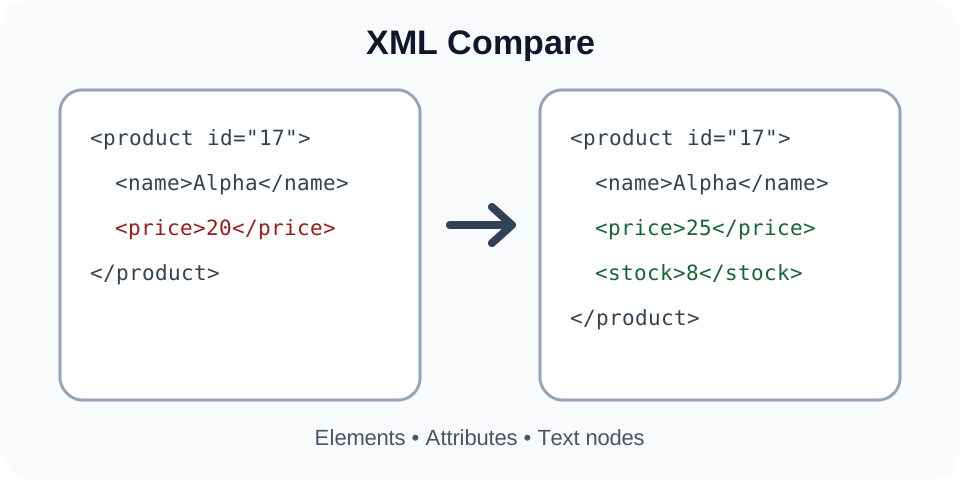
Compare two XML documents online, validate their structure, normalize indentation, and review changed elements, attributes, text nodes, and line positions.
Paste text or load two files to inspect additions, removals, and unchanged lines.
XML Compare is a free online xml compare for developers, designers, QA specialists, analysts, and technical teams that need to compare two XML documents without installing desktop software. The tool keeps the source visible, produces a separate result, and makes repetitive formatting or comparison work faster and more consistent.
Each input is parsed as XML and formatted consistently before comparison. This catches malformed markup early and reduces noise caused only by indentation, while preserving meaningful differences in elements, attributes, namespaces, and text content.
Use XML Compare for development reviews, debugging, configuration checks, code cleanup, documentation, migration work, quality assurance, and preparing safe test data. Always retain an untouched source copy and confirm the final result in the application that will actually consume it.
Focused controls, predictable output, and a workflow designed around this exact transformation.
The workspace is configured specifically for compare two XML documents.
Source and output remain separated so unintended changes are easier to detect.
Submitted source is transformed or compared without being run as application code.
Copy or download the verified result for the next stage of your workflow.
Practical details about input, output, privacy, limits, and the best way to use this tool.
XML Compare is an online developer utility used to compare two XML documents and produce normalized XML differences for review.
No. The tool processes text and does not execute submitted JavaScript, CSS, JSON, or XML as application code.
Compatible text files can be uploaded where the workspace provides a file control. File size and encoding limits still apply.
Test the result with the destination parser, compiler, validator, and project test suite before production use.
The tool is designed to preserve meaning, but nonstandard syntax and edge cases can behave differently. Always verify the result.
Do not submit secrets, private keys, personal records, or confidential production content to any environment you do not fully trust.
Utilities can use different parsers, tokenizers, indentation rules, comment policies, or normalization strategies.
Inspect the entire result, compare key structures, and test it in a staging or local environment while retaining the original source.
Understand XML syntax, elements, attributes, namespaces, validation, formatting, parsing, security, and common errors.
The xml compare accepts text pasted into the workspace and, where supported, a compatible uploaded text file. It processes the supplied content only after you run the tool. The original input remains available while the normalized XML differences appears in a separate panel, making verification easier than editing the source directly.
Each input is parsed as XML and formatted consistently before comparison. This catches malformed markup early and reduces noise caused only by indentation, while preserving meaningful differences in elements, attributes, namespaces, and text content. This browser workflow is useful for quick checks, but it should be treated as an assistant rather than a replacement for a project parser, test suite, compiler, linter, version-control review, or deployment pipeline.
The tool applies predictable structural rules rather than changing the intended meaning of the source. It does not fetch remote dependencies, execute submitted code, connect to an API, or modify a file on your device. A result can still expose an existing source problem, so check syntax and behavior after processing.
Consistent presentation helps reviewers distinguish real edits from accidental spacing differences. It also improves code review, documentation, support tickets, audit notes, and communication between people using different editors. Clear output is especially valuable when a nested structure contains many similar blocks.
Use XML Compare to inspect an updated configuration, source file, payload, stylesheet, or data document before it reaches staging or production. Compare the result with the expected change request and confirm that unrelated sections were not altered.
Readable code and data are easier to include in internal guides, issue reports, onboarding notes, release documentation, and troubleshooting instructions. Remove secrets and private information before creating examples for other people.
Build tools, plugins, APIs, exports, and third-party services often produce compact content. The xml compare can make that material easier to inspect or reduce it for transport, depending on the tool’s purpose. The destination system remains authoritative.
QA specialists can use the output to verify changed fields, missing blocks, formatting regressions, unexpected comments, or inconsistent structures. A realistic sample usually reveals more than a tiny artificial example, but sensitive production data should be replaced with safe placeholders.
Keep a backup of the original source. Confirm that the first and last characters were copied, that the file is complete, and that the selected tool matches the actual format. Hidden characters, smart quotation marks, mixed line endings, invalid encoding, and truncated uploads can create confusing results.
Start with a smaller representative section when the input is large. Include the structures that matter: nesting, comments, quoted values, arrays, attributes, selectors, template literals, or unusual Unicode characters. Once the test behaves correctly, process the complete source and inspect more than the first few lines.
Do not paste passwords, private keys, access tokens, session identifiers, personal records, proprietary production code, or confidential customer information into any environment you do not fully trust. Formatting, comparing, beautifying, or minifying content does not make it private.
XML syntax has its own rules. Content that resembles XML may still belong to a template language, preprocessor, framework extension, or another dialect. If the source uses nonstandard syntax, verify that this tool supports it before relying on the output.
Inspect the beginning, middle, and end of the result. Check delimiters, nesting, braces, brackets, quotation marks, comments, attributes, selectors, semicolons, values, and data types as appropriate. A clean first screen does not guarantee that the entire output is correct.
Compare important totals or landmarks before and after processing. For a comparison tool, inspect every reported change and its surrounding context. For a formatter, confirm that only presentation changed. For a minifier, run the compact result through the project’s tests or parser before deployment.
Paste or import the result into a staging copy, local development environment, validator, compiler, or test suite. Process one safe file or record before applying the same workflow broadly. Keep the original source available for rollback until the destination has accepted the result.
Values can look similar while having different meanings. Whitespace may be significant inside strings, numeric and string values may differ, case can matter, namespace prefixes can change interpretation, and automatic semicolon insertion can affect JavaScript. Review syntax and behavior, not only appearance.
Confirm that input was added to every required field and that the browser did not truncate a large paste. Comparison tools require both versions. A missing closing delimiter or incomplete file may prevent processing.
Locate the first reported invalid character, then examine the surrounding source. Common causes include unmatched braces, missing quotation marks, trailing separators, malformed comments, unsupported extensions, and characters copied from formatted documents.
Beautifiers, minifiers, and comparison engines may use different normalization rules. One tool may sort keys, retain comments, preserve line breaks, or apply a full parser while another uses conservative tokenization. Decide which behavior your workflow requires and test accordingly.
An inserted array item, moved block, changed indentation level, or reformatted section can shift many lines. Review the logical structure around the first change instead of relying only on the total number of changed lines.
Continue the workflow with XML Formatter, XML Validator, JSON Diff Viewer, Text Diff Checker. Each related utility handles a narrower transformation or validation step, so choose the one that matches the actual source format.
For formal syntax and language behavior, consult the W3C XML specification. Standards documentation is the authoritative reference when a browser utility and a destination parser behave differently.